
Right Heat Pump
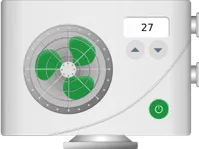
The Right heat pump widget renders a heat pump with pipe connectors and controls positioned on the right side of the symbol. It displays the current temperature, animates the fan when the pump is running, and exposes a power button and temperature setpoint controls for direct HMI Device interaction from the dashboard.
This widget belongs to the Traditional SCADA fluid system bundle — a collection of pipe segments, fittings, valves, pumps, and gauges designed for building fluid system diagrams on iRis Cloud dashboards. It represents a heat pump with a temperature display, fan rotation animation, a power button for remote start/stop control, and color-coded warning and critical states.
Key capabilities
Section titled “Key capabilities”- Display the current temperature value with a configurable range and step-increment controls.
- Animate the fan rotation when the pump is in the running state.
- Start or stop the pump remotely using the on-widget power button.
- Update the temperature setpoint directly from the dashboard using the up/down controls.
- Indicate warning and critical states with configurable colors.
- Animate a blinking effect when the pump is in critical state.
- Trigger a dashboard action when the widget symbol is clicked.
- Receive state data from HMI Device attributes, time series, alarm status, or dashboard state.
Target HMI Device
Section titled “Target HMI Device”The widget connects to a single data source: either a Device or an Entity alias that resolves to a HMI Device. This HMI Device provides the telemetry or attribute values used to drive the widget’s visual state.
SCADA symbol
Section titled “SCADA symbol”The SCADA symbol defines the visual shape of the widget. Each heat pump widget has a pre-selected symbol from the Traditional SCADA fluid system bundle. To use a different symbol, click Browse SCADA symbol from gallery and choose one from the library, or upload your own.
Behavior
Section titled “Behavior”Behavior parameters control what the widget displays and what actions it sends to the connected HMI Device. See Read parameter configuration and Write parameter configuration for the full configuration details.
| Parameter | Default | Values | Description |
|---|---|---|---|
| Running | Use attribute 'running' | True, False | Whether the pump is currently running. When True, the fan rotation animation plays. |
| Temperature | Use time series 'temperature' | number | Current temperature value displayed in the value box. |
| Update temperature | Add 'temperature' time series value: value | — | Action sent to the HMI Device when the user adjusts the temperature setpoint using the up/down controls. |
| Run | Set 'running' attribute to: true | — | Action sent to the HMI Device when the user clicks the power button to start the pump. |
| Stop | Set 'running' attribute to: false | — | Action sent to the HMI Device when the user clicks the power button to stop the pump. |
| Warning state | Use alarm status | True, False | Whether the pump is in warning state. |
| Critical state | Use alarm status | True, False | Whether the pump is in critical state. |
| Critical state animation | False | True, False | Whether to enable blinking animation when the pump is in critical state. |
| Rotation animation speed | 1 | number | Speed of the fan rotation animation. 1 is normal speed, 0 disables animation, < 1 — slower animation, > 1 — faster animation. |
| On click | Do nothing | — | Action triggered when the user clicks the widget symbol. |
On click
Section titled “On click”Defines what happens when the user clicks the SCADA symbol on the dashboard. Select one action type from the list below.
-
Do nothing
The symbol is clickable but performs no action. Use while testing styles or as a placeholder.
-
Navigate to new dashboard state
Switches to a different view within the same dashboard, like opening a HMI Device details screen.
Parameter Description Target dashboard state The state to open (required). Open right dashboard layout (mobile view) Opens a side panel instead of replacing the view (mobile only). Set entity from widget Passes the current entity to the target state. State entity parameter name The key the entity is passed under. Dashboard state display option Normal (same view), In separate dialog (popup), or In popover (inline overlay). -
Update current dashboard state
Updates the context of the current view, like switching the selected HMI Device, without navigating away.
Parameter Description Target dashboard state The state to switch to (optional). Open right dashboard layout (mobile view) Opens a side panel on mobile. Set entity from widget Passes the current entity to the updated state. State entity parameter name The key the entity is passed under. -
Navigate to other dashboard
Opens a completely different dashboard, like jumping from this system view to a global alarms view.
Parameter Description Target dashboard The dashboard to open (required). Target dashboard state The specific view to open within that dashboard. Open in a new browser tab Opens the dashboard without leaving the current page. Set entity from widget Passes the current entity to the other dashboard. State entity parameter name The key the entity is passed under. -
Custom action
Runs custom JavaScript on click to implement any behavior not covered by the built-in options. Use it to make HTTP requests, open custom dialogs, call other widget APIs, or interact with external services. The function receives:
$event,widgetContext,entityId,entityName,additionalParams,entityLabel. -
Custom action (with HTML template)
Same as Custom action, but also renders a custom HTML panel or dialog when the symbol is clicked. The function receives an additional
htmlTemplateparameter:$event,widgetContext,entityId,entityName,htmlTemplate,additionalParams,entityLabel.Parameter Description Resources External scripts and styles loaded before the action runs. CSS Styling for the HTML template. HTML Layout of the rendered dialog or panel. JS Action logic. -
Mobile action
Triggers a native device feature inside a iRis Cloud mobile app, like the camera or QR scanner.
Parameter Description Mobile action type Take picture from gallery, Take photo, Open map directions, Open map location, Scan QR Code, Make phone call, Get phone location, Take screenshot, or HMI Device provision. -
Open URL
Opens a website or external link when clicked.
Parameter Description URL The address to open (required). Open in a new browser tab Keeps the current dashboard open while opening the link.
Read parameter configuration
Section titled “Read parameter configuration”To configure Running, Temperature, Warning state, or Critical state, click the parameter’s edit icon. When Action is set to Do nothing, the Value field accepts:
| Parameter | Value |
|---|---|
| Running | True or False |
| Temperature | Any number — displayed in the value box until the HMI Device sends data. |
| Warning state | True or False |
| Critical state | True or False |
For all other actions, the configuration dialog works the same way regardless of which parameter you are editing:
-
Get attribute
Read the parameter value from a HMI Device attribute.
Parameter Description Attribute scope Where the attribute is stored: Any, Client, Server, or Shared. Attribute key Attribute name to read, like runningortemperature.Action result converter None — parameter is activated when the attribute equals the value you specify; Function — parameter is activated when your f(data)returnstrue.’[parameter]’ when result is The value or condition that activates this parameter (not shown for Temperature, which uses the raw numeric result). -
Get time series
Read the parameter value from the latest telemetry reading.
Parameter Description Time series key Telemetry key to monitor, like temperatureorrunning.Action result converter None — parameter is activated when the telemetry value equals what you specify; Function — parameter is activated when your f(data)returnstrue.’[parameter]’ when result is The value or condition that activates this parameter (not shown for Temperature, which uses the raw numeric result). -
Get alarm status
Activate the parameter when a specific alarm is active on the HMI Device.
Parameter Description Alarm severity Which severity levels trigger the active state: Critical, Major, Minor, Warning, or Indeterminate. Alarm types Any alarm, or a specific alarm type. -
Get dashboard state id
Activate the parameter based on which dashboard state is currently open.
Parameter Description Action result converter None — parameter is activated when the state name matches the text you enter; Function — parameter is activated when your f(data)returnstrue.’[parameter]’ when result is The state name or condition that activates this parameter. -
Get dashboard state object
Activate the parameter using the full dashboard state context; use this when you need to evaluate multiple state parameters at once.
Parameter Description Parse value function Write a f(data)function that returns the parameter value.
Write parameter configuration
Section titled “Write parameter configuration”Update temperature, Run, and Stop define what is sent to the HMI Device when the user interacts with the widget controls. Click the parameter’s edit icon to configure it.
-
Set attribute
Write a value to a HMI Device attribute.
Parameter Description Attribute scope Target scope: Server or Shared. Attribute key Attribute name to write, like runningortemperature.Value Constant — send a fixed value (supports Boolean, number, or string types); Function — write a f(value)function to compute the value from the current control value. -
Add time series
Write a value to a HMI Device time series key.
Parameter Description Time series key Telemetry key to write, like temperatureorsetpoint.Value Constant — send a fixed value; Function — write a f(value)function to compute the value from the current control value.
Appearance
Section titled “Appearance”The Appearance section controls the widget title, temperature display, control styling, and pump state colors.
| Setting | Default | Description |
|---|---|---|
| Title | Widget name | Widget title displayed in the header. Supports entityName and entityLabel variables. |
| Card icon | — | Icon shown in the widget header. Configure its size and color. |
| Temperature min | 10 | Minimum value of the temperature setpoint range. |
| Temperature max | 45 | Maximum value of the temperature setpoint range. |
| Temperature step increment | 1 | Step size applied when the user clicks the up or down control. |
| Value text | Black | Color and font of the temperature value label. |
| Value units | °C | Units label shown next to the temperature value. Toggle to show or hide. |
| Value box background | Transparent | Background color of the temperature value box. |
| Power button background (Enabled) | Green | Background color of the power button when the pump is running. |
| Power button background (Disabled) | Transparent | Background color of the power button when the pump is stopped. |
| Running color | Green | Pump color when in the running state. |
| Stopped color | Gray | Pump color when stopped (not running). |
| Warning color | Orange | Pump color when in warning state. |
| Critical color | Red | Pump color when in critical state. |
| Heat pump color | Transparent | Base color of the heat pump body. |
| Pipe color | Transparent | Color of the pipe connectors attached to the pump. |
Card appearance
Section titled “Card appearance”The Card appearance section controls the widget container style.
| Setting | Default | Description |
|---|---|---|
| Background | Transparent | Card background color. |
| Show card buttons | Fullscreen | Buttons shown on the card when hovered. |
| Card border radius | 0px | Rounding of card corners. |
| Card padding | 12px | Inner spacing between the card edge and widget content. |
Troubleshooting
Section titled “Troubleshooting”Fan shows no rotation animation when running
| Cause | Solution |
|---|---|
Running action is set to Do nothing and value is False | Open the Running edit dialog, set the correct Action, and specify the attribute key. |
Rotation animation speed is 0 | Set Rotation animation speed to a non-zero value (e.g. 1 for normal speed). |
| Target HMI Device is not connected | Confirm that the selected HMI Device is online and actively sending data. |
Power button does not start or stop the pump
| Cause | Solution |
|---|---|
| Run or Stop action is misconfigured | Open the Run or Stop edit dialog and verify the attribute key, scope, and value match the HMI Device’s expected format. |
| Target HMI Device is not connected | Confirm that the selected HMI Device is online and reachable. |
Warning or critical color does not appear
| Cause | Solution |
|---|---|
Warning state or Critical state action is Do nothing and value is False | Configure the state parameter to read from an alarm status or a HMI Device attribute. |
| Alarm is not active on the HMI Device | Confirm that the HMI Device has an active alarm of the expected severity. |